DPA templates: catalogue ad layouts and when to use each
The main types of DPA template for Meta catalogue ads, what each one is good at, and how to choose one for your products, prices and placements.
AI Shopping Feeds Updated
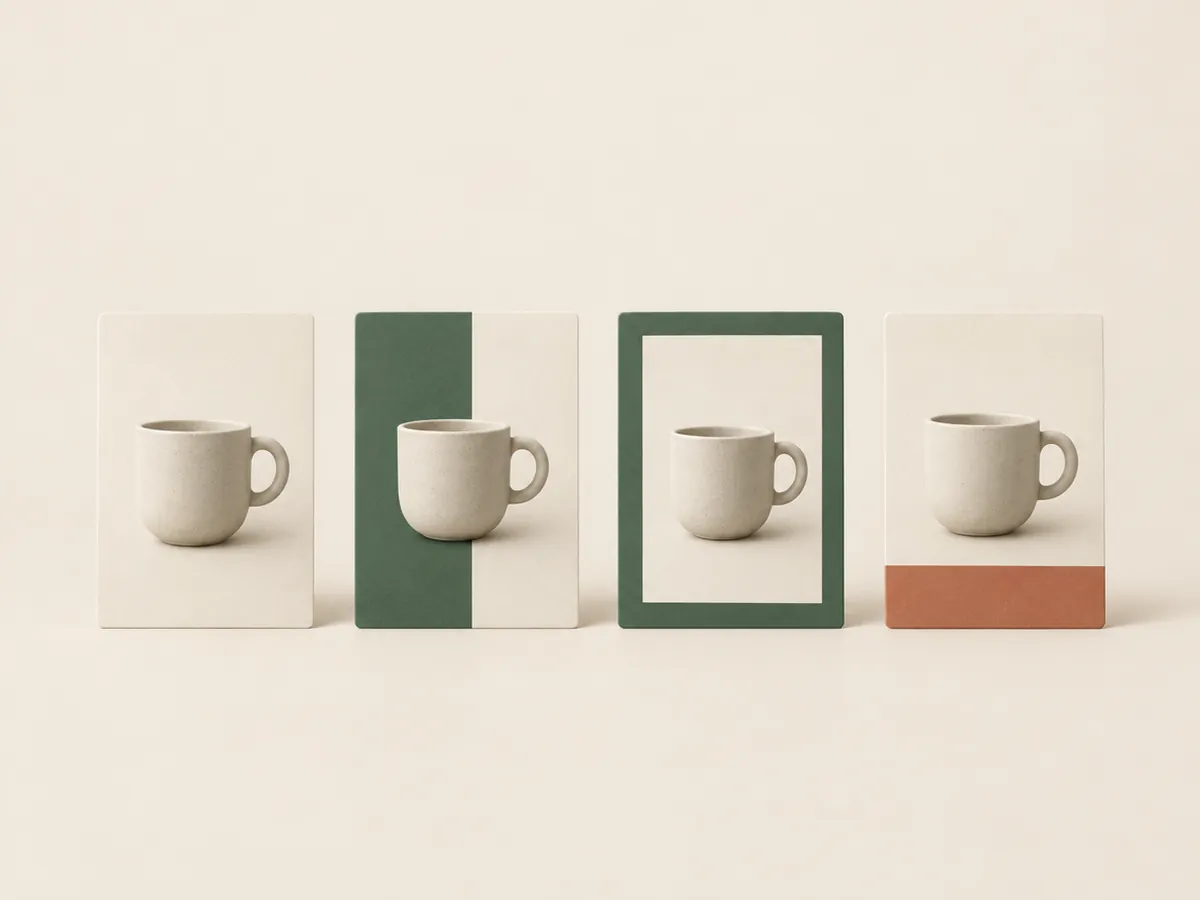
A DPA template is one design that gets filled in for every product in your catalogue. The layout, colours and type stay fixed. The product image, name, brand and price change for each product. Done well, a single template turns a catalogue of plain product photos into ads that look like your brand.
Most catalogue ad templates fall into a handful of types. This guide goes through each, what it’s good at and where it falls down. The starters named below come from the 43 starter layouts in our DPA Creative Editor, but the ideas apply whatever tool you use.
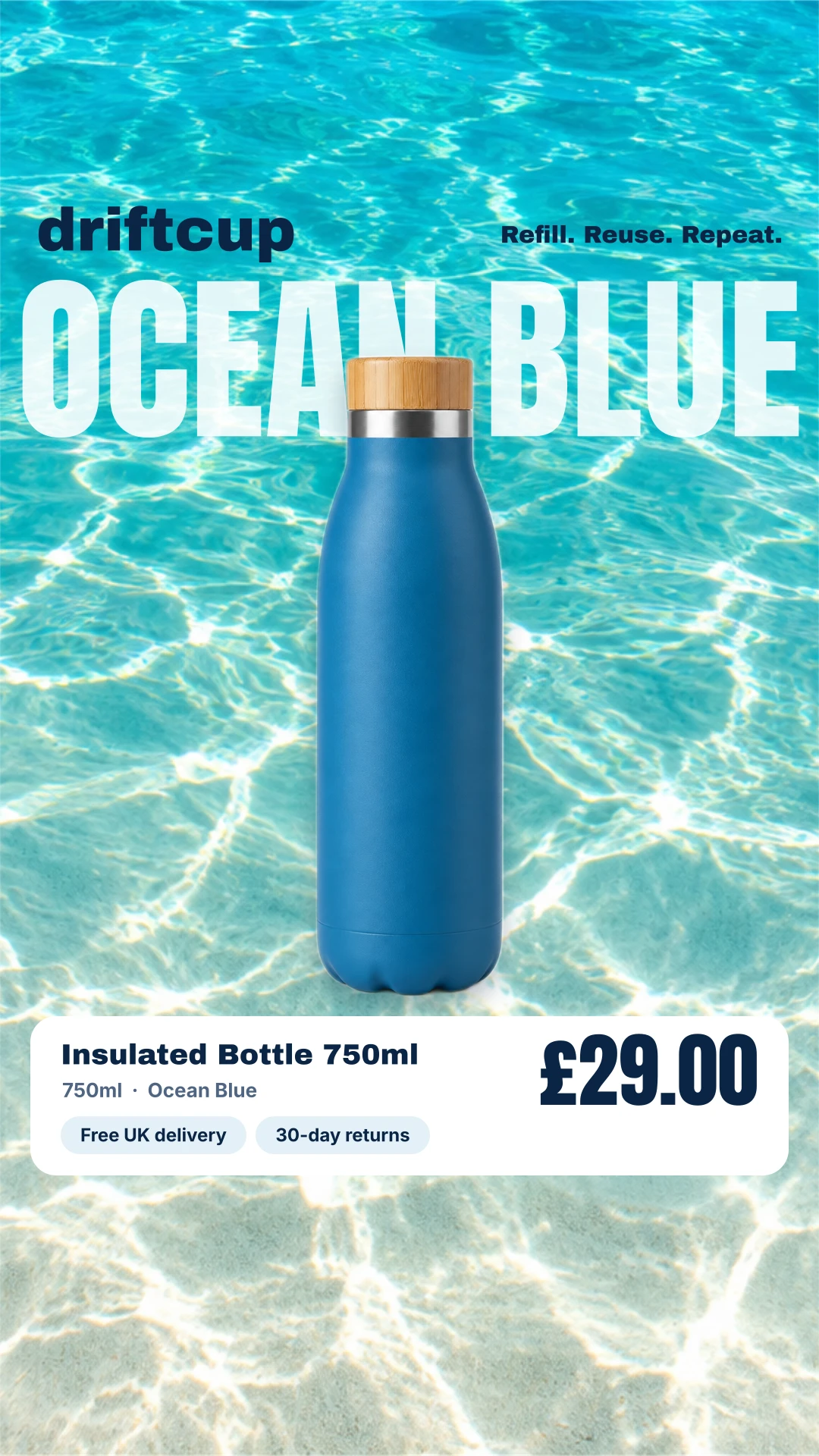
1. Product-first studio layouts
What they look like: a large, clean product stage, usually white or a soft colour, with the product name and price in a simple band.
Good for: big catalogues, retargeting, and products whose photos already sell them. The product stays the hero and nothing gets in its way.
Watch out for: they can look close to a plain catalogue ad. Use your brand colour, type and logo so they’re recognisably yours.
Starters in this style: Studio Essential (a generous white product stage with a crisp name and price), Headline Studio, Corner Label and Catalogue Ticket.
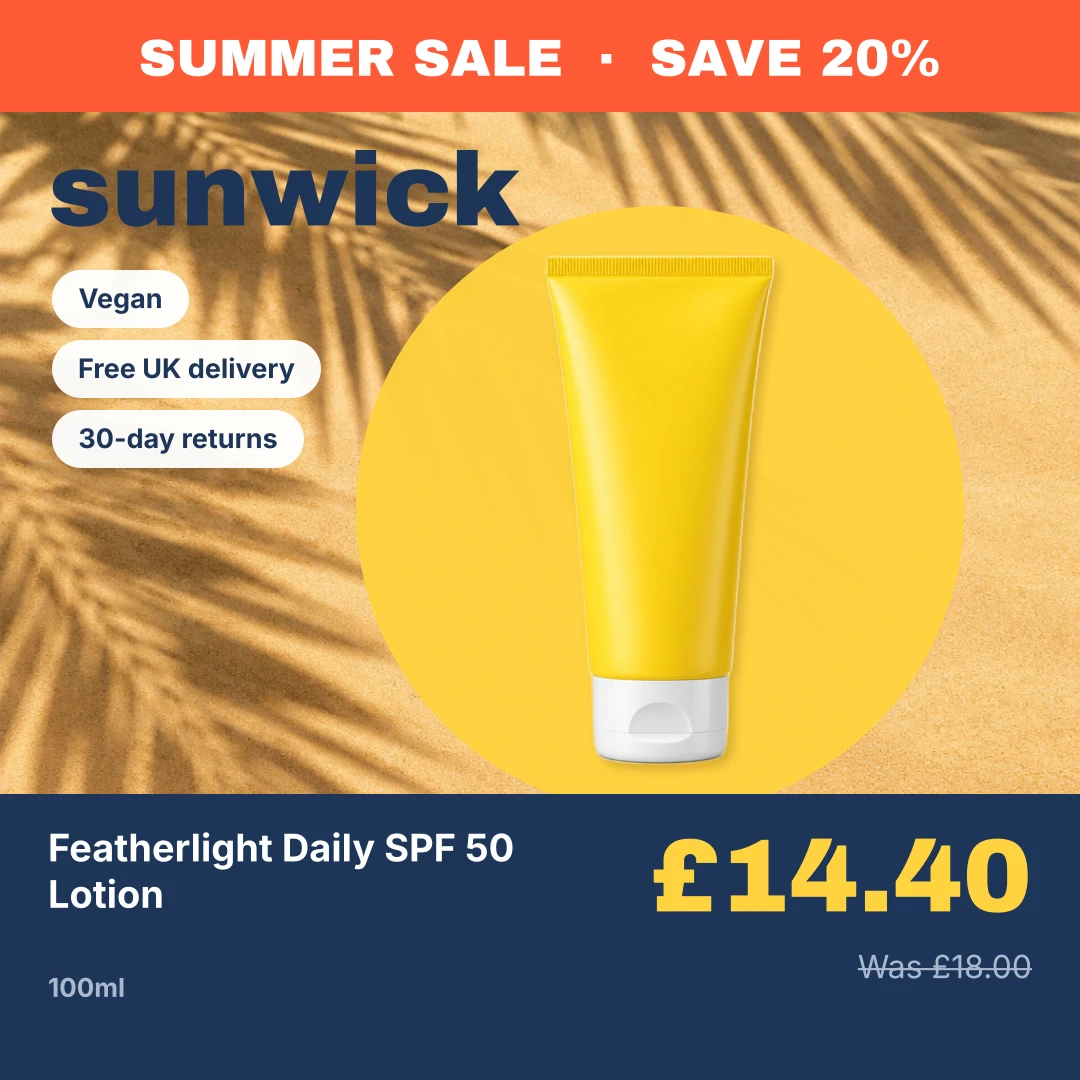
2. Price-led offer layouts
What they look like: the price is a design element in its own right: a ticket, a disc, a poster-sized number. Sale products show the current price, the original price struck through and the saving.
Good for: sales, promotions and price-sensitive categories. On full-price products the saving simply doesn’t appear, so one template can run all year.
Watch out for: a layout built around a big discount looks odd on a product with a small one. Decide whether a 5% saving is worth shouting about, and use a condition to show the badge only above a threshold if not.
Starters in this style: Sale Card (automatic savings with the original price crossed out), Price Ticket, Price Orbit, Price Poster and Offer Blocks.
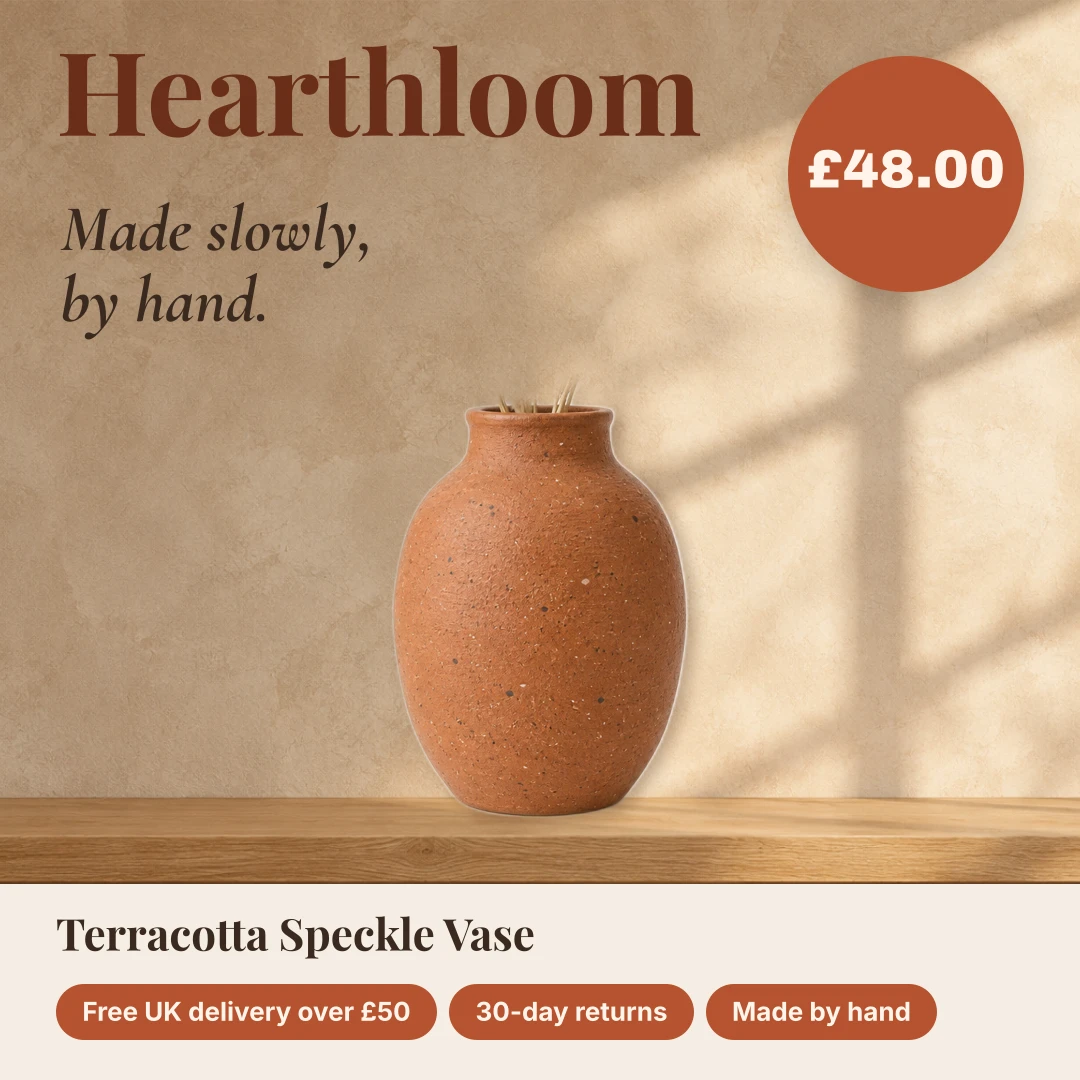
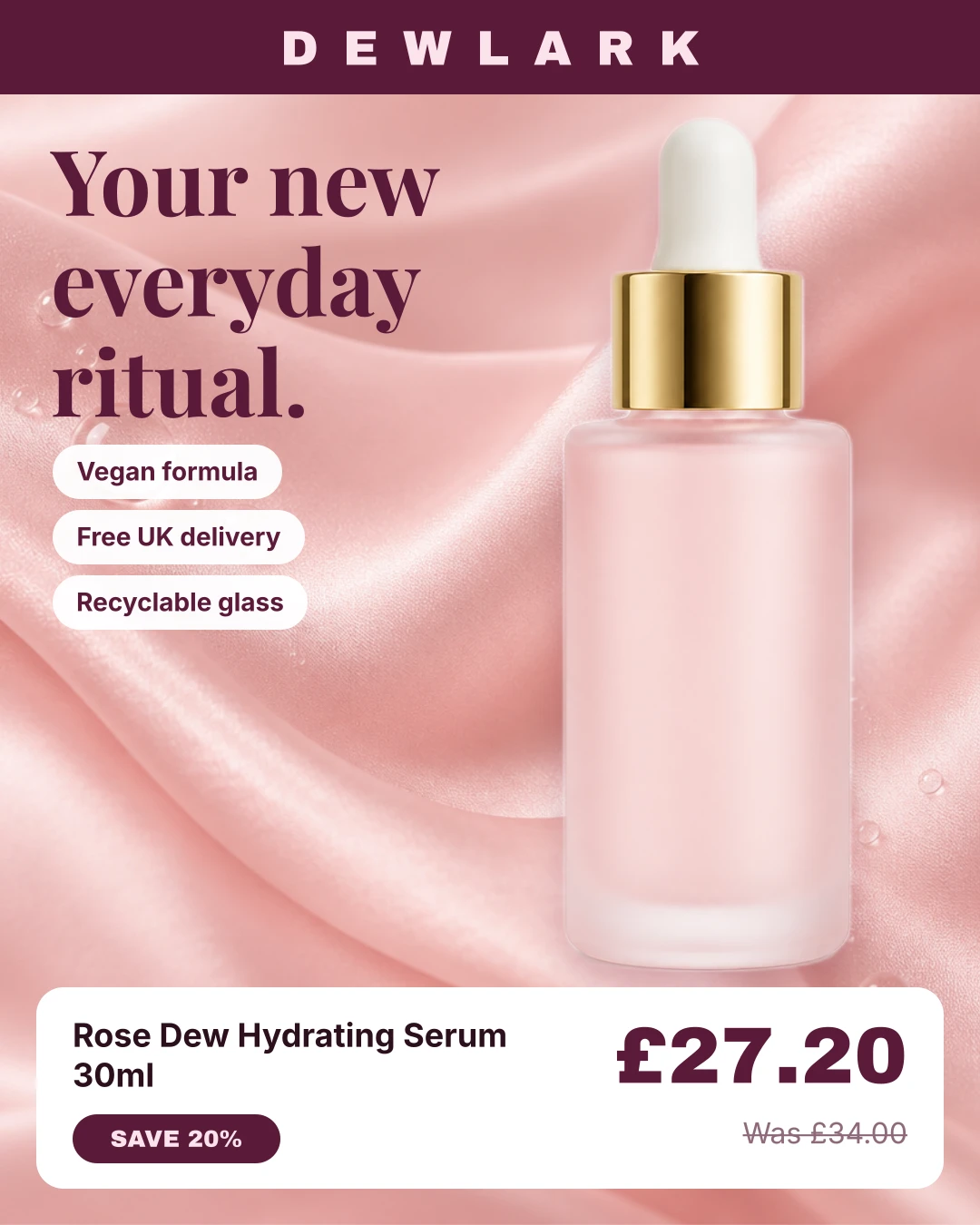
3. Editorial and lifestyle layouts
What they look like: magazine-style compositions with asymmetric splits, serif type, mastheads and more colour. The product sits inside a designed page rather than on a plain stage.
Good for: fashion, beauty, home and premium brands, where the feel of the brand matters as much as the product. Also useful for prospecting, when people don’t know you yet.
Watch out for: busy designs shrink badly in small placements. Check the template at the size people actually see it on a phone.
Starters in this style: Editorial Split (an asymmetric layout that keeps product imagery uncropped), Midnight Edit for watches and tech, Maison Journal, Beauty Ritual and Palette Story.
4. Product detail layouts
What they look like: room for information: colour, size, variant, a longer product name, sometimes a specification panel.
Good for: products where the variant matters (a specific colour of a jacket, a size of a rug) and catalogues with long, descriptive names.
Watch out for: missing data. If a product has no colour or size in the feed, the template must not show an empty label. In our editor, a layer can be set to show only when a field is present, which is how the Variant Focus starter avoids empty labels.
Starters in this style: Variant Focus, Specification Split, Variant Ledger, Colour Study and Product Passport.
Choosing a template
Start with three questions.
- What are your product photos like? Clean cut-outs suit almost any layout. Lifestyle photos with busy backgrounds need a layout that frames them rather than placing text over them.
- What does the ad need to say? If it’s price, use a price-led layout. If it’s the brand, use an editorial one. If it’s the variant, use a detail layout.
- Where will it run? Feed placements favour portrait 4:5, Stories and Reels are 9:16, and carousels are 1:1. Pick a template that works in the placements you’ll buy.
Design rules that apply to every template
- Let the product breathe. Text should never sit on top of the product. Leave a margin around the product stage.
- Keep text short and large. Product names can be long. Limit them to two or three lines, and shrink or truncate the rest rather than letting it overflow.
- Respect safe zones in 9:16. The top and bottom of Stories and Reels are covered by the platform’s interface. Keep the name and price away from those areas.
- Use real data in previews. A template that looks good with “Product name” can fall apart with a 90-character title or a four-figure price. Preview it against your longest names and highest prices.
- Show sale details only on sale products. Badges and struck-through prices should depend on the data, not be part of the fixed design.
How templates work in our editor
In the DPA Creative Editor, each starter comes in square 1:1, portrait 4:5 and story 9:16, laid out natively for each format rather than stretched. You change colours, fonts and text, add your logo, and preview the result on real products from your feed. Text layers use placeholders such as {{title}}, {{brand}}, {{price}} and {{sale_price}}, and conditions control what shows on each product.
When you publish, every product in the feed gets its own rendered image, which reaches Meta through our catalogue sync or your feed URL. You can save your designs as templates for that brand and reuse them on its other feeds.
Not sure whether you need a template at all? Read Meta’s built-in frames and overlays compared with designing your own.
Frequently asked questions
What is a DPA template?
A design that is filled in automatically for every product in your catalogue. It fixes the layout, colours and type, and leaves placeholders for product data such as the image, name, brand and price.
Which DPA template works best?
There is no single best layout. Simple product-first templates suit retargeting and large catalogues, price-led templates suit sales, and editorial templates suit brands whose products need context. Test a branded template against your plain catalogue ads before rolling it out.
Do I need different templates for Stories and Reels?
Ideally, yes. Stories and Reels are full-screen 9:16, feeds favour 4:5 portrait, and carousels use 1:1 squares. A layout designed for each format avoids products being cropped or padded.