Showing sale prices and discounts in catalogue ads automatically
How to get sale prices, struck-through original prices and discount badges into Meta catalogue ads from your feed, so they switch on and off with the sale.
AI Shopping Feeds Updated

A sale is the easiest thing to put in an ad and the easiest thing to get wrong. Prices change at midnight, some products are discounted and some aren’t, and the discount varies by product. If your catalogue ads rely on someone editing creative by hand, they’ll be out of date within hours.
The fix is to let the data drive it. Put the sale in the feed once, and let every ad read it from there.
Step 1: get the sale into the feed properly
Everything starts with two fields.
- price keeps the full, regular price.
- sale_price holds the reduced price, only for products that are on sale.
Don’t overwrite price with the sale price. Google’s help centre asks you to keep submitting the full price, and both Google and Meta use the gap between the two to show that a product is discounted.
Add sale_price_effective_date if you want the sale to start and stop on its own. It takes a start and end date and time, so a Black Friday price can switch on at midnight and off after Cyber Monday without anyone touching the feed. Our Black Friday feed checklist covers the format.
Our DPA Creative Editor follows the effective date too: outside the sale dates a product’s image shows the full price with no sale badge, and the image is rendered again shortly after the sale starts and after it ends. Check a few images after each switch.
Then check that the sale price in the feed matches the product page and the checkout. A mismatch is the most common reason sale products get rejected.
Step 2: choose how the ad shows the discount
Once the catalogue knows which products are on sale, you have three ways to show it.
Meta’s catalogue price display
Catalogue ads can show product prices from the catalogue in the ad. That’s the baseline: the price is right, but it sits outside the image and looks the same for every brand.
Meta’s dynamic overlays
Dynamic overlays put labels on the product image using catalogue data. When Meta launched them in April 2025, the offer types were the current price, a sale price with the original struck through, a sale price with the percentage discount, and free shipping. Meta’s developer documentation lists them as an Advantage+ creative option you can turn on.
They’re quick to set up. The trade-off is control: Meta decides how they look, and at launch they delivered to the Facebook feed only.
Your own sale design, rendered per product
The third option is to design the sale treatment into the product image itself: a badge in your brand colour, the original price struck through, the saving in your type. A template renders a separate image for each product from its own data, so every product shows its own discount.
The key is that the sale elements must be conditional. They should only appear on products that are actually discounted. Otherwise full-price products end up with an empty badge or a “0% off” label.

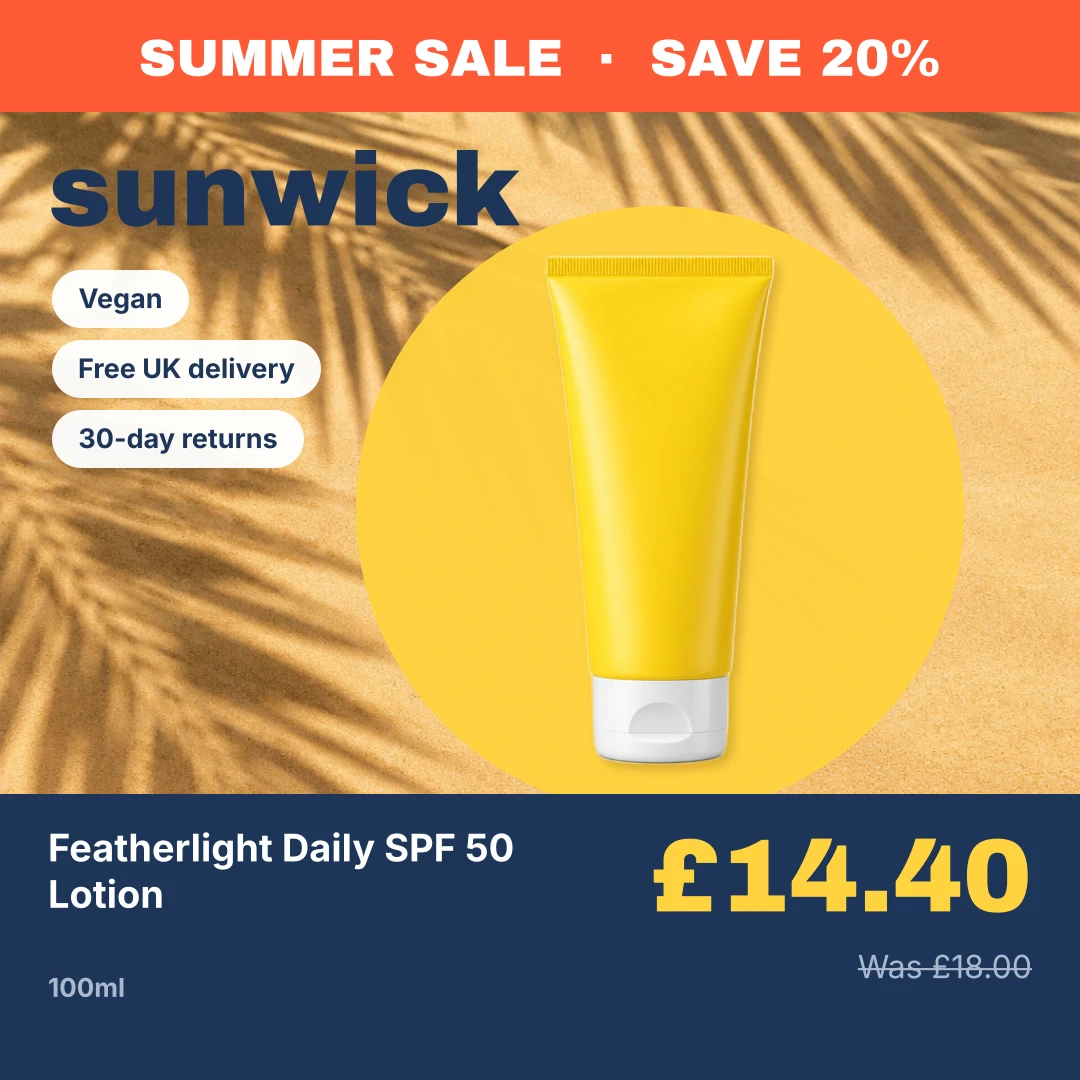

How the conditional sale design works in our editor
In our DPA Creative Editor, three things make this work.
- Price fields. Text layers can show
{{price}}and{{sale_price}}, formatted in the currency and style of the feed’s country. A strikethrough text style turns{{price}}into the “was” price. - Derived discount fields.
{{discount_pct}}(for example “25%”) and{{discount_amount}}(for example “£10.00”) are worked out for each product from its price and sale price. They’re only filled in when the sale price is below the full price. - Show only when. Any layer can be set to show only when a condition is true. Set the badge, the “was” price and the saving to show only when
sale_priceis present, and they disappear on full-price products. You can also use a threshold, for example only show the badge whendiscount_pctis greater than 10.
The starters in the Offers & savings group, such as Sale Card and Price Ticket, are built this way: savings appear only on discounted products, so one template can run all year.
When the sale prices arrive in your feed, the product images re-render with the new prices and badges and reach your Meta catalogue through our catalogue sync or your feed URL. When the sale ends and sale_price goes, the images re-render without them.
Things that go wrong
- The badge shows on full-price products. The badge layer isn’t conditional, or the feed has
sale_priceequal toprice. Check both. - A tiny discount gets a big badge. A 3% saving in a huge badge looks odd. Use a threshold on
discount_pct, or show the saving as an amount rather than a percentage. - Prices in the ad don’t match the site. The feed hasn’t refreshed since prices changed. Refresh more often during sales.
- Mixed currencies. If a feed mixes currencies, a discount can’t be worked out reliably. Keep one currency per feed, and one feed per country if you sell in several.
- Sale images on Google Shopping. Google doesn’t allow promotional text on main product images, so sale badges belong in Meta catalogue images and ad creative, not in a Google Shopping
image_link. Our Google Merchant Center sync always sends the original photos.
Summary
Put the sale in sale_price, schedule it with sale_price_effective_date, and make every sale element in your creative depend on that data. Then the ads take care of themselves when the sale starts, and again when it ends.
Frequently asked questions
How does Meta know a product is on sale?
From the catalogue. If a product has a sale_price lower than its price, Meta treats it as discounted. You can add sale_price_effective_date so the sale starts and ends on its own.
Can I show the percentage discount on each product?
Yes. Meta's dynamic overlays can show a sale price with the percentage discount. If you design your own catalogue images, the template can work out the discount for each product from its price and sale price.
What happens to the badge when the sale ends?
If the badge depends on the sale price in the feed, it disappears when the sale price does. With designed images, the product images re-render without the badge once the feed no longer has a sale price.